How to Create Beautiful K-Pop Dance Videos with AI — The Complete ImagineToVideo Tutorial
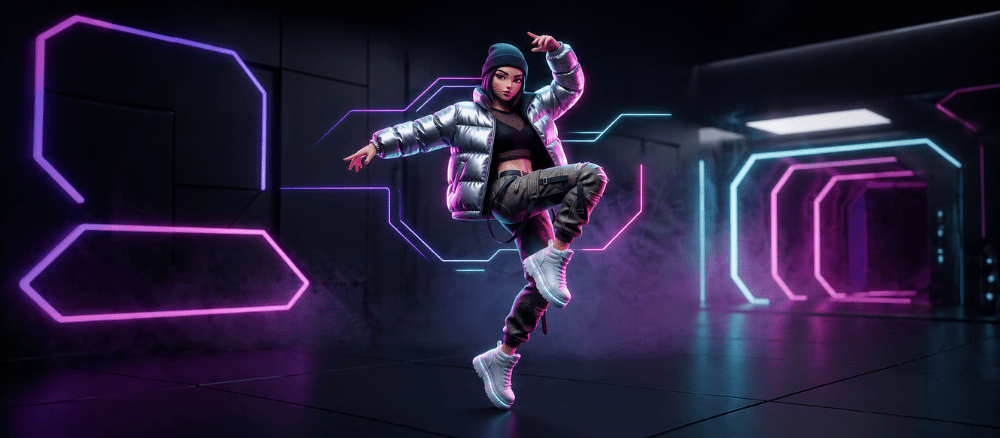
K-pop dance covers fill TikTok and YouTube Shorts every single day — and until recently, making one meant actually learning the choreography, finding a clean shooting location, and convincing a friend to hold a camera. What if instead, you could design your own dancer — a custom 3D-styled character with the exact look you want — and have her perform a full K-pop dance routine in about three minutes, for around a dollar?
That's exactly what this tutorial walks through. By the end, you'll have the complete two-model workflow we use at ImagineToVideo: ChatGPT (or GPT Image) to design a character and pose sheet, then Seedance 2.0 on ImagineToVideo to bring her to life. The technique is the same one behind the 16-panel K-pop dance reference sheets that have been spreading through Korean creator Threads for the past month — those grids show exactly what your character should do, frame by frame.
Here's the reference sheet we'll use as the running example:

And here's the final result — the same character, now actually performing the dance:
<video src="https://cdn.imaginetovideo.com/blog/Korean%20dance%20routine.mp4" controls style="max-width: 480px; width: 100%; display: block; margin: 1.5rem auto;"></video>
About this series. This is Part 1 of ImagineToVideo Video Generation Tutorials — a hands-on series where we walk through one specific creative use case per post, from prompt to final render, using the models built into ImagineToVideo. Future episodes will cover product hero shots, pet portrait animations, cinematic dialogue scenes with native audio, and more.
Why ChatGPT + Seedance Is the Right Stack for K-Pop Dance Videos
The thing ChatGPT and GPT Image are very good at is character consistency. Give the model a base portrait and a structured prompt, and it will render the same person across sixteen different dance poses without the face drifting. That's a hard problem. Pre-2024, you'd solve it with LoRA training or hand-painting in Photoshop. Now it's a one-shot.
The thing they cannot do is animate. The output is always a still grid.
What makes this workflow viable in 2026 is the second category of model: reference-to-video (R2V). You feed it one or more reference images plus a motion prompt, and it generates a video that respects the reference. Two of these are integrated into ImagineToVideo:
- Seedance 2.0 — supports up to 9 reference images, generates 5–15 seconds at 720p, and costs roughly $0.85 for a five-second clip. This is the one we recommend for K-pop dance videos. It's cheap enough that you can iterate until the choreography looks right.
- Kling V3 Omni — supports up to 7 references plus native audio and multi-shot sequencing, but costs about $13 for a five-second clip. Save it for the final pass when you want music synced to the dance, or for delivering at true 4K.
The rest of this post is the Seedance path, with a Kling upgrade section near the end. If you want the cinematic-grade native 4K version of this workflow, there's a separate guide for the Kling 4K Mode.
Step 1 — Design Your Dancer in ChatGPT (the 16-Panel Sheet)
Open ChatGPT (the version with image generation enabled, or use GPT Image directly). Upload a single base portrait of the character you want to dance — a clean front-facing 3D-styled illustration works best. If you don't have one, ask ChatGPT to generate one first: "3D-rendered cartoon portrait of a young woman with curly brown hair, round glasses, white cardigan over a purple dress, teal sneakers, neutral background, Pixar concept-art style."
Then paste in this prompt for the dance pose sheet:
3D-rendered K-pop dance reference sheet, 4×4 grid layout, 16 panels total.
[CHARACTER] Use the uploaded portrait. Same face, same outfit, same hair across
all sixteen panels — do not redesign the character.
[PANEL STRUCTURE — per cell]
  Top-left: bold number badge (1–16) + short pose title in Korean or English
  Center: full-body dance pose illustration
  Bottom-left: 3–4 line description of the motion
  Overlay: directional motion arrows (curved, straight, or rotational)
[CHOREOGRAPHY] Sixteen sequential moves of a K-pop / hip-hop routine: warm-up
pose, rhythm bounce, smooth body wave, footwork start, hip-hop sequence
(panels 5–16), wave moves, popping moves, footwork steps. End on a confident
closing pose.
[STYLE] High-detail 3D-sculpted render, soft studio lighting, subtle shadows,
clean linework, K-pop choreography illustration quality.
[COLOR] Grayscale shading, no color tones.
[NEGATIVE] No background scenery, no extra characters, no color, no logos.
[OUTPUT] At least 1024×1024 final resolution. 2048×2048 if available.
Two details in that prompt are doing real work and shouldn't be removed:
The "same face, same outfit" line. Without it, ChatGPT will quietly redesign the cardigan around panel 7 because the prompt mentions "wave move." Tell it explicitly that the character is fixed.
The 1024+ output resolution. This matters for Step 3. ImagineToVideo's Seedance R2V endpoint rejects reference images smaller than 640×640 pixels — it returns a non-retryable error and your generation never starts. ChatGPT's default image output sometimes lands around 768×768; demanding 1024+ in the prompt avoids the rejection.
What you should now have is a single 4×4 grid showing your dancer in sixteen sequential moves of a K-pop routine — exactly like the one at the top of this post.
Step 2 — Crop to Your Key Dance Frames (or Don't)
You now have a single 16-panel image. There are two ways to feed it to Seedance, and they each have a use:
Use the whole grid as a single reference. Best when you want the output to capture the style of the character — proportions, color palette, rendering quality — rather than a specific pose sequence. Drop the full grid into the reference slot and let the model decide which moves to emphasize.
Crop to one to four key panels. Best when you want a specific dance sequence in a specific order. Pick the start pose, the end pose, and one or two midpoint frames. Crop them in Photopea, Figma, or any in-browser editor (we literally use Preview on macOS most of the time). Each crop should be at least 640×640 — re-export at 1024+ to be safe.
For the dance routine in this post, we cropped panels 1, 5, 11, and 16 — the warm-up pose, the wave entry, the hip-hop midpoint, and the closing footwork. Four references is the sweet spot in our testing. One reference and the model has too much freedom; nine references and the output starts to look like a flipbook instead of a flowing routine.
Step 3 — Bring Her to Life on Seedance 2.0
This is where the magic happens. Open the Seedance 2.0 generator (or the Seedance landing page and click Try Now).
In the reference panel, upload your 1–4 cropped panels. The UI will show thumbnails of each as it accepts them. If any get rejected with a "pixel count too low" error, that reference is under 640×640 — re-export at higher resolution and re-upload.
In the prompt field — which has a 2000-character limit, more than enough for a full shot description — paste in something structured. The pattern that works for K-pop dance:
[CHARACTER] {{copy the character description from your ChatGPT sheet}}
[ACTION] A young woman in a white cardigan and purple dress performs a
K-pop / hip-hop dance routine. She starts in a neutral standing pose,
transitions through a smooth body wave, lowers her center of gravity into
hip-hop footwork with crossed legs, and finishes in a confident closing pose.
Smooth, energetic, on-beat motion.
[CAMERA] Static medium shot, eye level, slight handheld micro-movement.
[STYLE] 3D-rendered, cinematic studio lighting, neutral seamless backdrop,
K-pop music video aesthetic.
[DURATION] 5 seconds.
A few tuning notes from running this dozens of times:
Resolution: stick with 720p. Seedance offers 480p and 720p. 480p is for first-pass iteration only — at this scale, the character's face starts to mush. 720p is the sweet spot for short-form social. If you eventually want 4K for a hero K-pop reel, the move is to nail the choreography at 720p in Seedance, then re-run the locked prompt in Kling V3 with the 4K toggle.
Duration: start at 5 seconds. Seedance supports 5, 8, 10, 12, and 15 seconds. Longer durations cost proportionally more credits and the model has more room to drift. Five seconds is enough to validate that the dance reads correctly; once it does, regenerate at 8 or 10 seconds with the same prompt and references for the full routine.
Use Seedance 2.0 Fast for iteration. ImagineToVideo offers two Seedance tiers: the quality version and a fast version that's 25–40% cheaper and noticeably quicker, with output that's nearly indistinguishable for short reference-driven clips. We do every iteration on Fast and only switch to the quality tier for the locked final render that goes to TikTok or YouTube.
Total cost for that clip: about $0.85. Seedance Fast would have brought it down closer to $0.65. For comparison, hiring a 3D animator to rig and animate a five-second character dance cycle starts somewhere north of $400.
→ Create your own K-pop dance video with Seedance 2.0
Step 4 — Upgrade to Kling V3 Omni When You Need Music or 4K
Seedance is the right answer for ~80% of K-pop dance video projects. The 20% case where you should reach for Kling V3 Omni instead:
- You need music or vocals synced to the dance. Seedance generates muted video. Kling V3 Omni generates video and native audio in one pass — including ambient sound, sound effects, and (with the right prompt) music cues that align to the motion. If you want a finished K-pop clip with a beat already mixed in, that's Kling.
- You need a multi-shot sequence. Kling V3 Omni supports up to 6 connected camera shots inside a single generation, with consistent character identity across cuts. Seedance is single-shot only. For a 30-second K-pop verse with three angle changes, you generate it once in Kling rather than stitching six Seedance outputs.
- You need true 4K. Kling's 1080p mode internally maps to "pro" mode, which generates native 3840×2160. Seedance caps at 720p. For broadcast, brand campaigns, or a hero K-pop video destined for a screen larger than a phone, the upgrade is worth it.
Cost comparison for a five-second clip:
| Model | ~5s cost | Best for K-pop dance |
|---|---|---|
| Seedance 2.0 Fast ⭐ | ~$0.75 | Iteration, short-form social, throwaway tests |
| Seedance 2.0 Quality | ~$0.85 | Locked final renders for TikTok / Shorts |
| Kling V3 | ~$8.84 | Multi-shot routines, 1080p delivery |
| Kling V3 Omni | ~$13.41 | Multi-reference + native audio (full K-pop clip) |
| Kling 4K Mode | ~$25–30 | Broadcast, hero music videos, festival cuts |
The bolded rows are where this workflow lives by default. The Kling rows are where you go after the choreography is locked.
→ Try Kling V3 image-to-video (entry point for V3 standard, V3 Omni, and the new 4K mode)
How the Three Models Compare on the Same K-Pop Reference
We ran the exact same Korean dance routine reference through all three relevant models on ImagineToVideo. The short version:
- Seedance 2.0 Quality held character identity best across the full five seconds. The face stayed the face. The dance read correctly. This is the one in the embed above.
- Kling V3 Omni produced a slightly more cinematic image — better lighting, more depth — but cost 15× more for a clip that, side by side, isn't 15× better for this specific use case. Worth it if you need its specific advantages (synced music, multi-shot, 4K).
- Kling V3 standard struggled because it doesn't accept reference images at all on the standard tier — only first/last-frame inputs. For a multi-reference K-pop workflow like this, it's a non-starter. Use V3 Omni instead.
The takeaway: for the K-pop-dance-from-ChatGPT-sheet workflow specifically, Seedance is not just the cheap option, it's the right option. Kling V3 Omni is the upgrade you reach for when the deliverable demands it.
Five Common Pitfalls (and How to Avoid Them)
After running this loop maybe two hundred times for K-pop and hip-hop dance clips, these are the failure modes we see most often:
1. Reference image too small. This is the number-one rejection. ImagineToVideo treats Seedance R2V's pixel-count error as non-retryable — your credits aren't burned, but the generation never starts. Fix: re-export every reference at 1024×1024 minimum.
2. Character drift between panels. ChatGPT will quietly redesign the outfit around panel 7 if you don't pin it. Always include "same face, same outfit, same hair, do not redesign" in the sheet prompt. If drift still happens, generate the base portrait separately first, then feed that into the sheet prompt as a fixed reference.
3. Prompt too short. Reference-to-video models read the prompt as the choreography specification. "Dance" gets you generic dance. "Hip-hop body wave transitioning into crossed-leg footwork, static medium shot, eye level, neutral backdrop, on-beat" gets you what you actually wanted. Aim for 100–200 words.
4. Trying to one-shot at 4K. This wastes credits. Iterate at 720p Seedance until the dance is locked, then upgrade to Kling 4K Mode for the final render. Don't burn premium credits validating a prompt that's not yet right.
5. Aspect ratio mismatch. If the deliverable is 9:16 vertical (TikTok, Reels, Shorts — which is most K-pop dance content), generate at 9:16 from the start. The model composes for the frame; trying to crop a 16:9 horizontal generation into vertical at the end almost always cuts the dancer's head or feet off mid-move.
TL;DR — Your K-Pop Dance Video in Three Steps
- ChatGPT / GPT Image — generate a 16-panel K-pop dance reference sheet at 1024+ resolution, with explicit "same face, same outfit" pinning.
- Crop — pick 1–4 key dance panels (start, midpoints, closing pose), each ≥640×640.
- Seedance 2.0 — drop into /seedance, write a structured 100–200 word choreography prompt, render at 720p / 5s. Roughly $1 and three minutes per clip.
Upgrade to Kling V3 Omni when you need synced music, multi-shot routines, or true 4K delivery. Otherwise, Seedance is where this K-pop workflow lives.
→ Start your first K-pop dance video on Seedance 2.0 → Or jump to Kling V3 image-to-video for music + 4K
If your end deliverable is broadcast or big-screen and you want native 3840×2160 from the start, the Kling 4K Mode guide walks through that path specifically — and our 4K AI video generator landing page is the fastest way to get there.
What's Next in This Series
This was Part 1 of ImagineToVideo Video Generation Tutorials. Coming up:
- Part 2 — Pet portrait animation: turning your dog into a cinematic short with one photo and Seedance.
- Part 3 — Product hero shots: generating broadcast-quality 3D rotation and macro detail clips for e-commerce.
- Part 4 — Cinematic dialogue scenes with Kling V3 Omni native audio (lip sync + room tone).
- Part 5 — Vertical 9:16 narrative shorts: end-to-end TikTok-ready story clips from a single character reference.
Subscribe to the blog or check back next week for the next episode. And if there's a specific use case you want us to walk through, drop us a line.
Now go make your dancer move.